
The Shooter's Journal is now available to MPX customers too!
Installing the latest version
A software maintenance subscription gives you access to the latest version, which supports uploading data to the Shooter's Journal.
Status in Pegasus
You can easily check the connection to eCloud, the service connecting Pegasus to the Shooter's Journal.

Competition
When shooters are entered with shooter IDs, data uploads automatically to the Shooter's Journal. This applies only to shooters who have already created an account and linked their shooter ID.
Shooters with registered accounts automatically receive their competition data from all ranges using eScore or Pegasus connected to the Shooter's Journal. Photos of old scorecards, paper targets and results from other systems can also be uploaded.
Training
To upload training data, create a training competition in Pegasus and register shooters with their shooter IDs.
Entries from an Excel file
Create an entry file in Excel, save it in the supported CSV import format and import it into Pegasus for each training session. Shooter names and IDs must be entered in the file beforehand.
Double-click a target
Double-click the target in Pegasus to enter the shooter name and ID manually.
Name list
Enter all shooters with their shooter IDs here and organise them into relays.
Upload images
Have old scorecards in your archive? Upload photos and record their totals digitally.

Shooter's Journal account
Encourage club members to create an account and explain the possibilities it offers. We have made a poster for display at your range. Download it here:
Create account
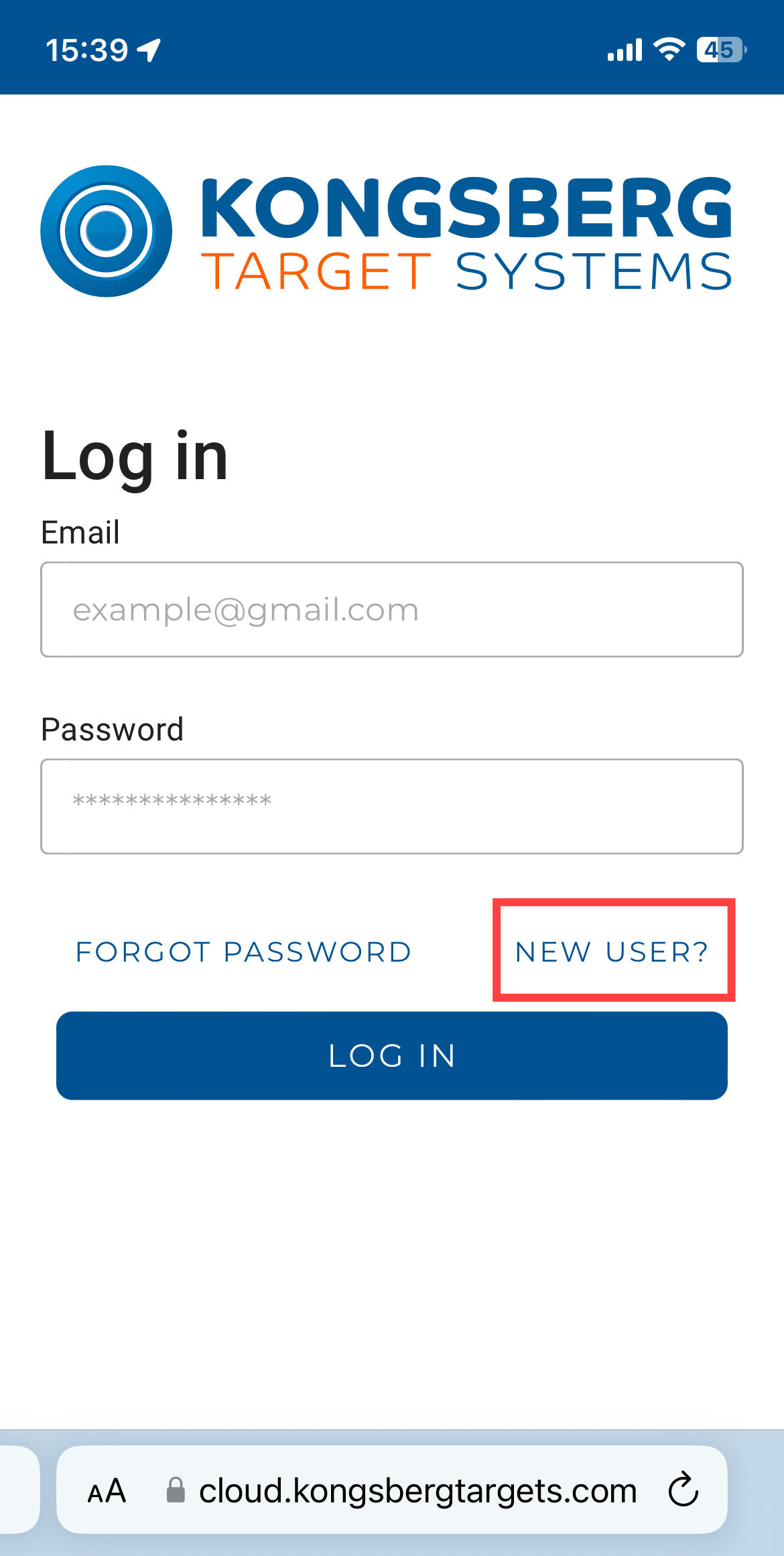
To create an account on the new W5 Shooter's Journal, go to cloud.kongsbergtargets.com.
This will open a page as shown in the image below. To create a new account, click “New user?” indicated in red.
This will take you to the “Create account” page as seen below.
Please enter your e-mail address and your personal password. Then click “Continue”

Before your account is created, you will also need to go through and accept our Terms and conditions and the necessary cookies.
Once you have read and understood the agreements, click on the blue toggle button (marked in red below) and then click the “Accept and create” button to finalize the account.

Confirm email
Before your account is ready for use, you need to confirm that you own the e-mail address used to create the account.
When clicking “Accept and create” in the step above, an e-mail is sent to your address containing a link as shown below.
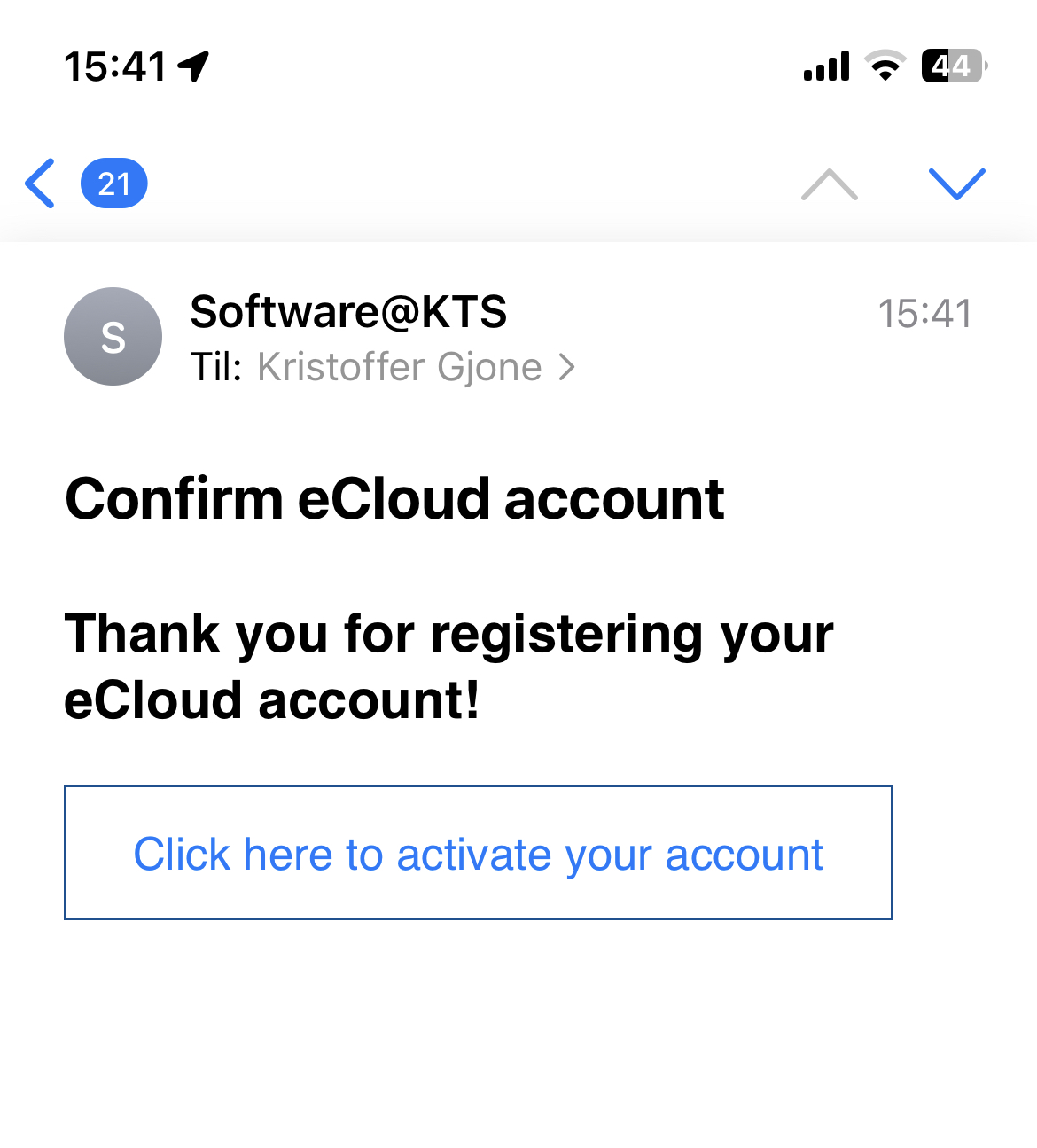
To finalize the account, click on the link that says: “Click here to activate your account”.
You will now be re-directed to the page shown below:

This means that your account is ready and you can log in!
Log in for the first time
You are now ready to log in to your account for the first time.
To do that, simply type your e-mail and password on the login page.
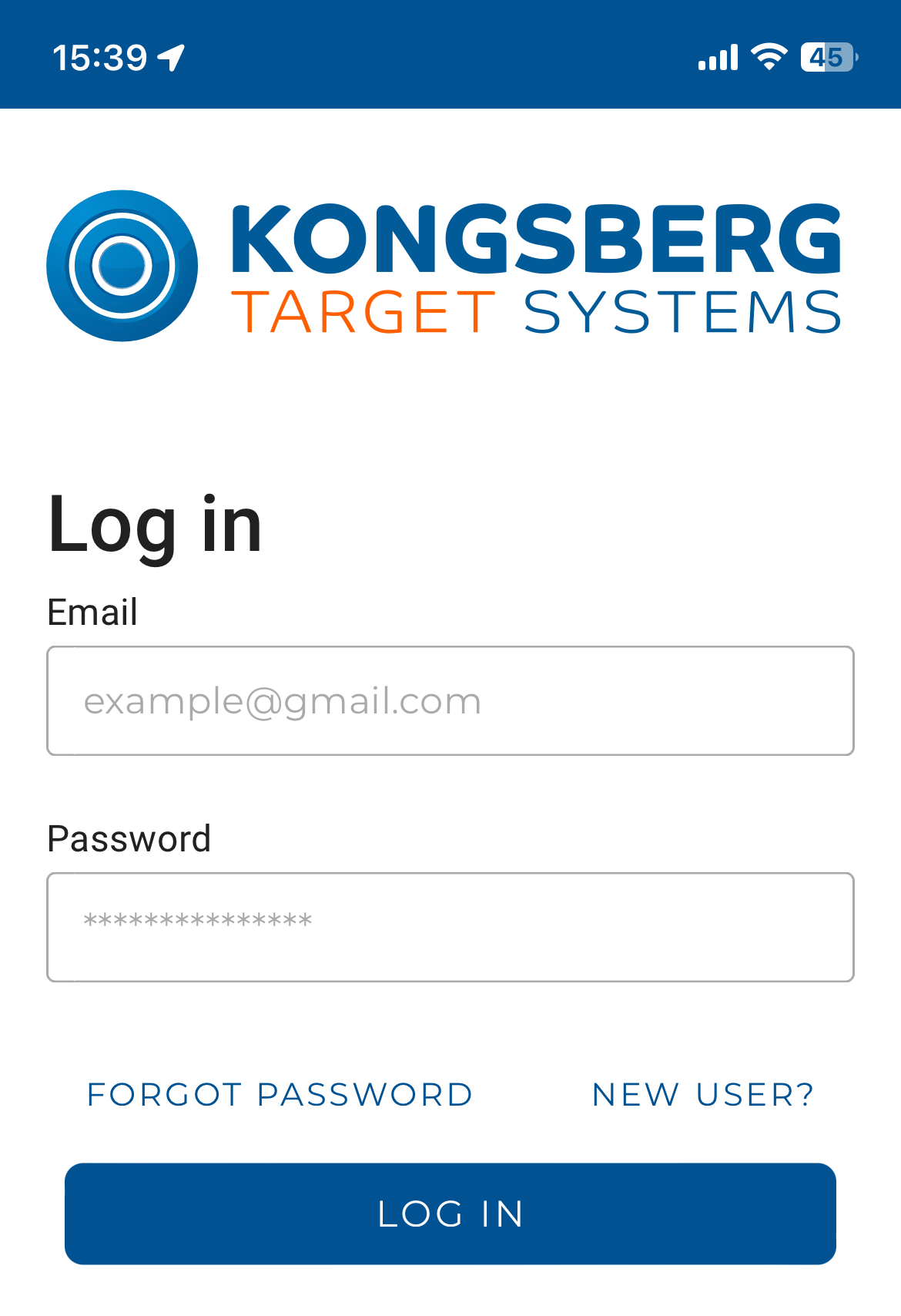
When clicking “Log in” you will be go directly to the profile page, where you can enter some vital information about yourself and possible organization memberships that you have.

Your name is the only required information, but we also recommend to add data about membership in a shooting sports organization if that is relevant for you. This is used to automatically store results to your account when you participate in competitions where Kongsberg eScore is used.
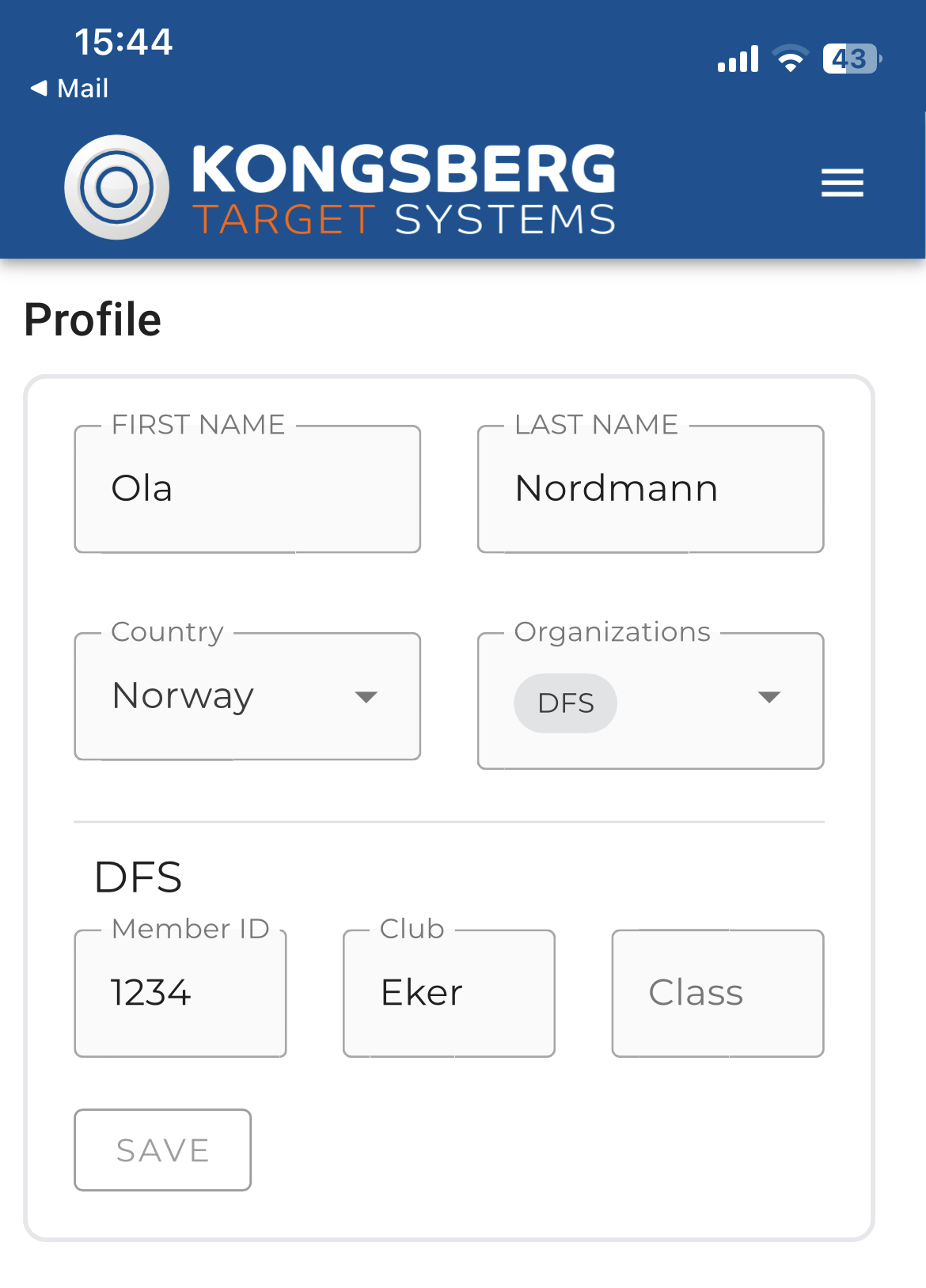
When you have entered all relevant information, you can navigate back to the home page by clicking the “Kongsberg Target Systems” logo on the top of the screen or by clicking the hamburger menu and then Activity.
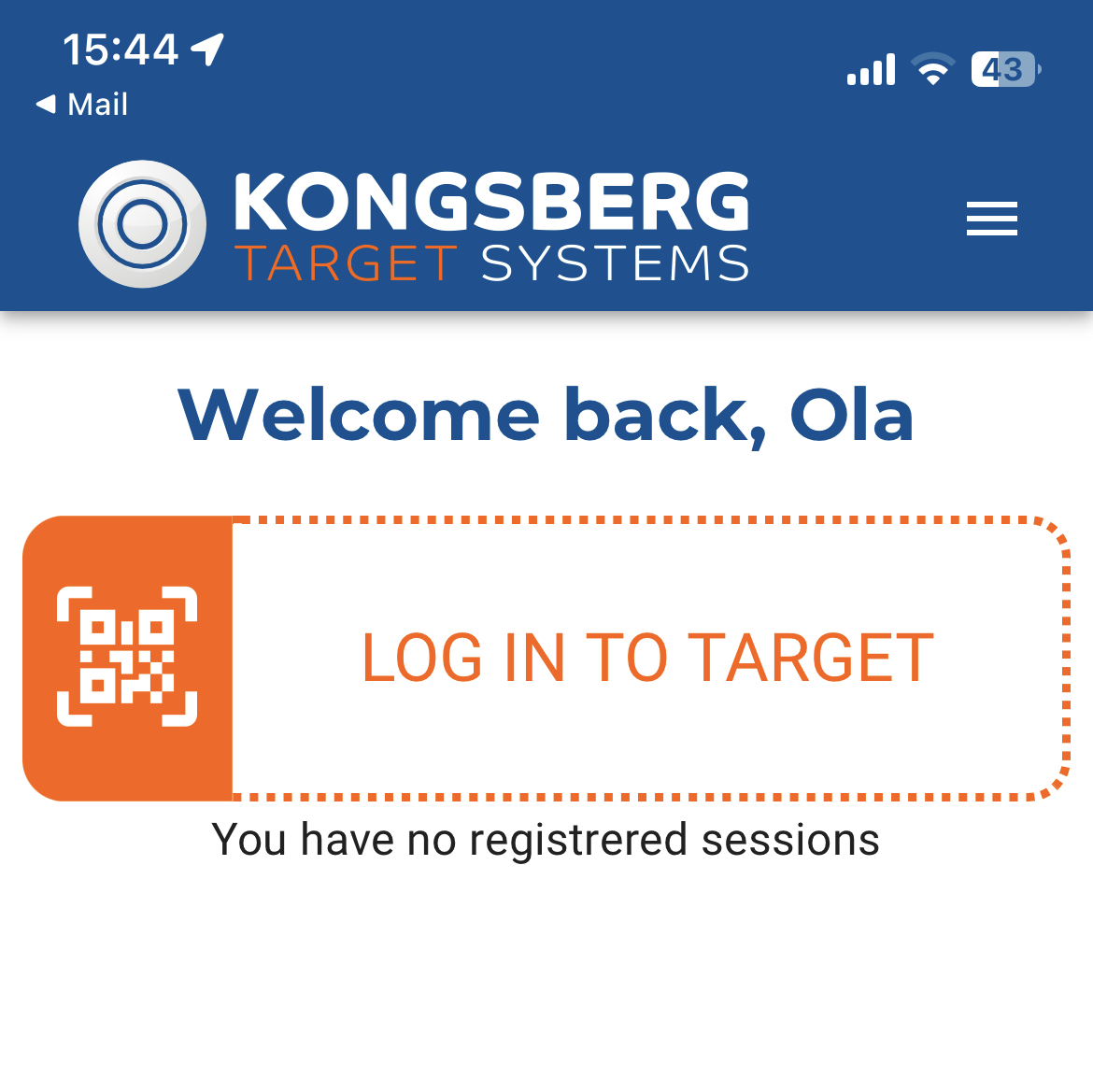
You are now ready to start recording data to your account!
Further use of the system is covered in other articles.