The user account system restricts access to the interface so that only authorised personnel can manage competitions and system settings. There are three user levels in eHub:
- Admin
Chief Range Officer
Range Officer
Each user level has different permissions and access to system features.
Setup
Setting up the Admin account
When you start eHubfor the first time, you need to set up the Admin account. This account has the highest access level and gives full control over all features and settings in eHub, including system updates, competitions, users and general settings.
Follow these steps to activate the Admin account:
- Start eHub.
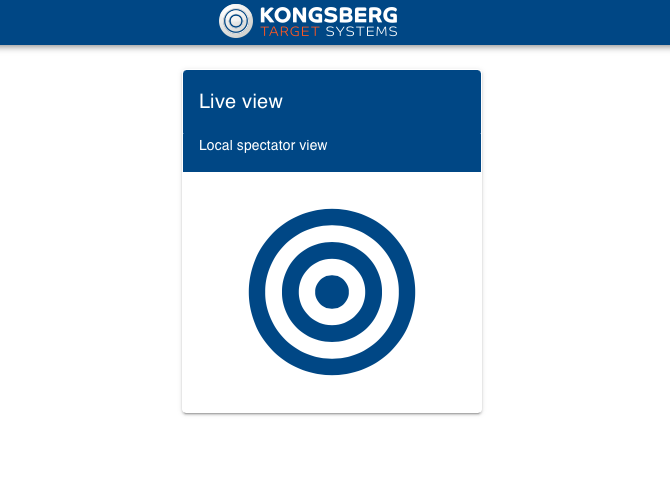
- Open the interface by entering the eHubURL in a browser on a PC or tablet connected to the network.
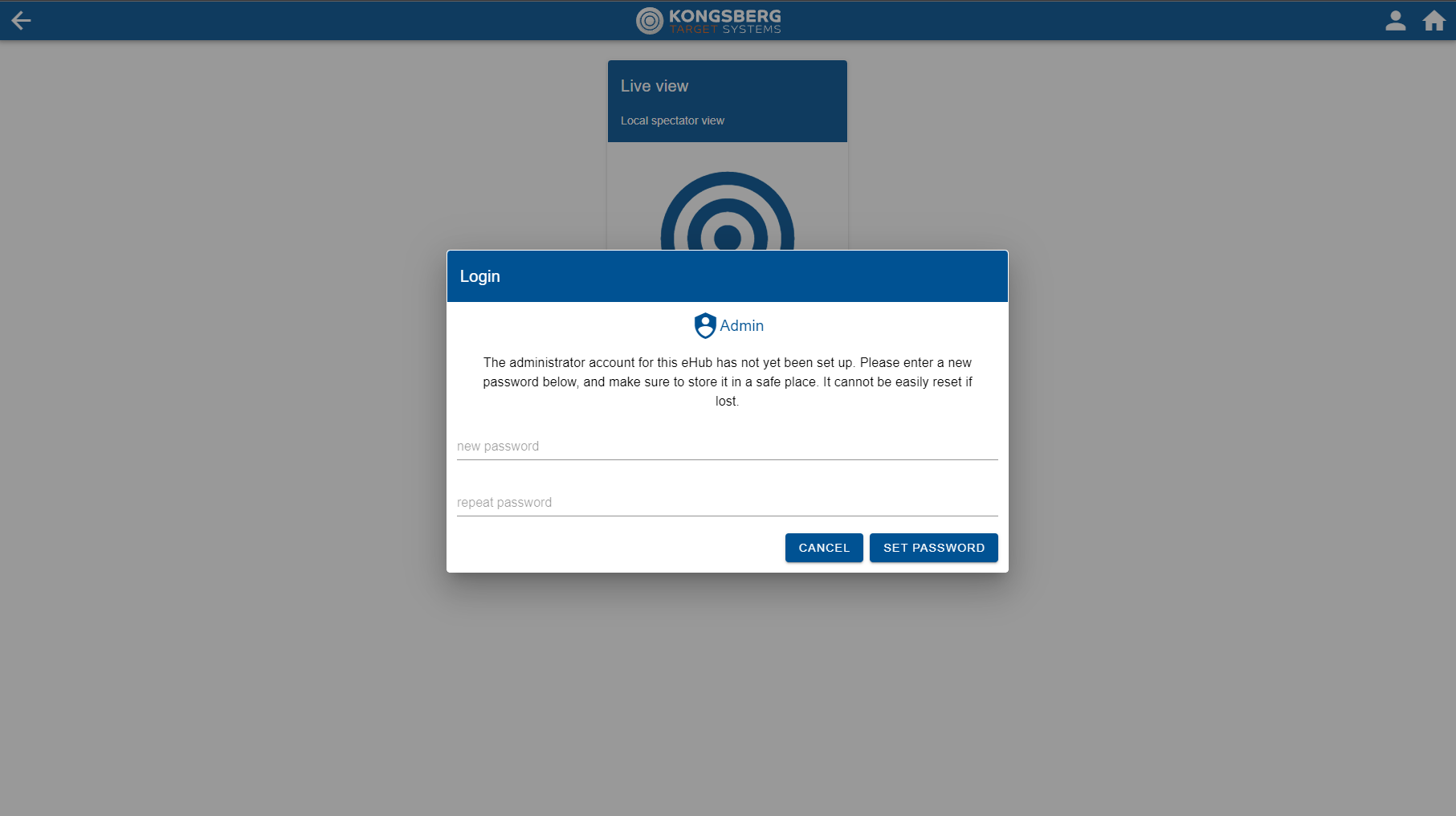
- When you open the interface, you are prompted to choose a password for the Admin account.
- Enter a password of at least 8 characters, confirm it and select “SET PASSWORD”. Note: If you lose the password, you must contact W5 for a reset file.
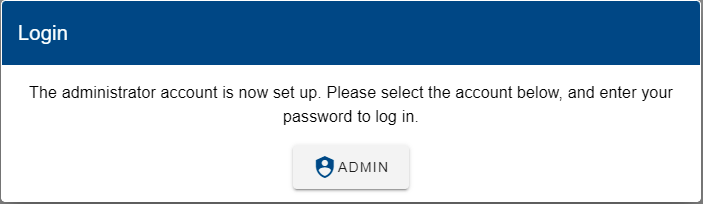
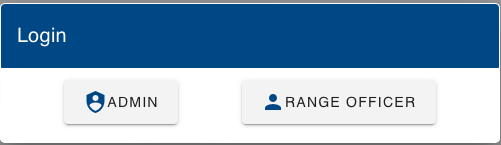
- A confirmation appears when the Admin account is activated. Select “Admin” to log in.
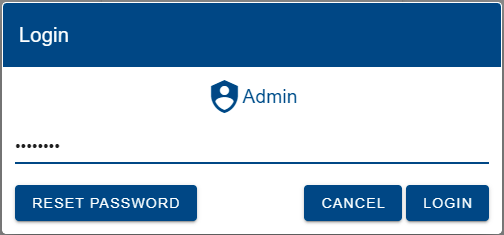
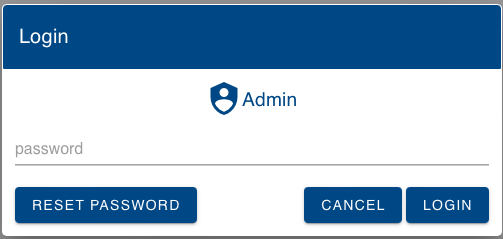
- Enter the password and select “LOG IN”.
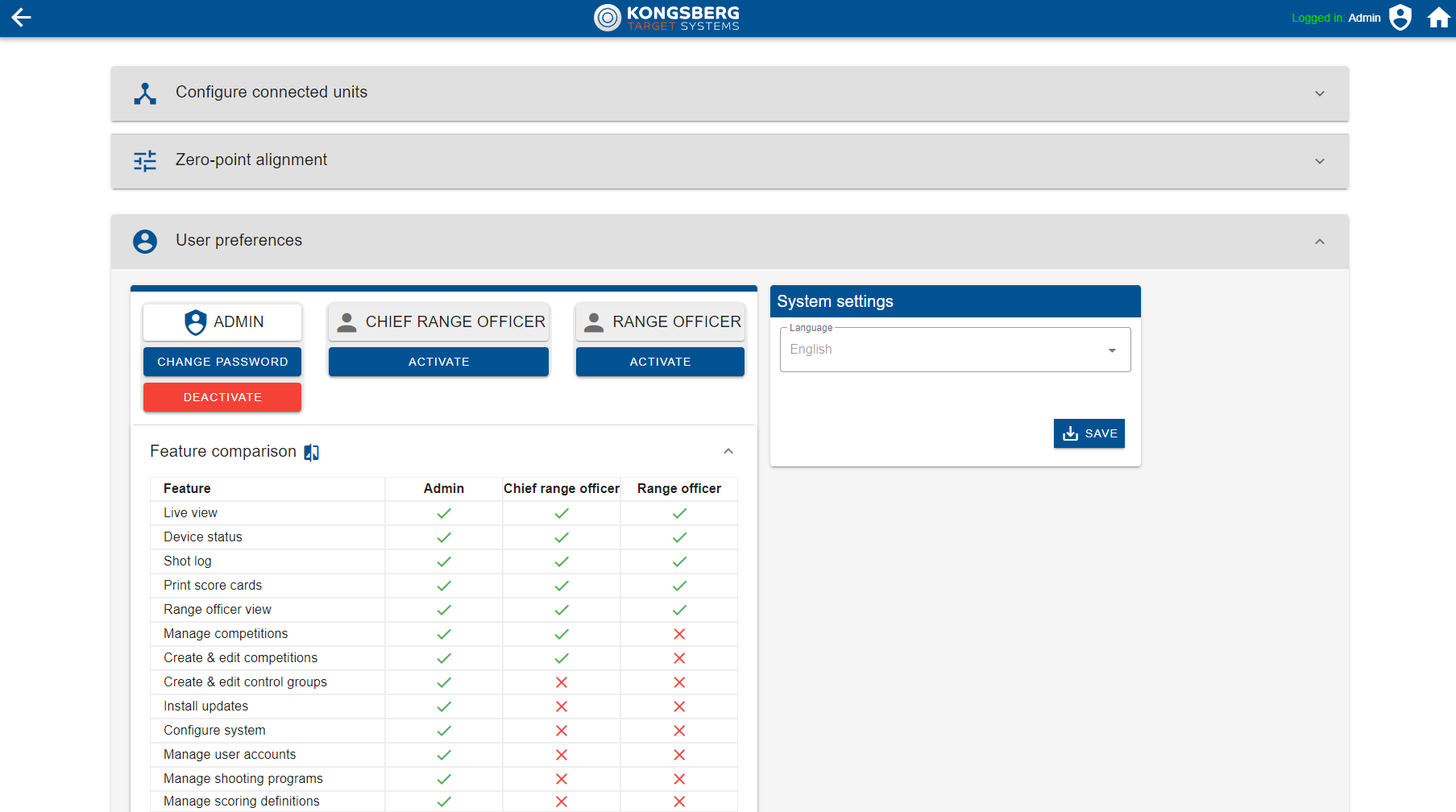
- You are taken to Settings → User-specific settings → User accounts, where you can create and manage additional users.
- Enter a password of at least 8 characters, confirm it and select “SET PASSWORD”. Note: If you lose the password, you must contact W5 for a reset file.
Activating an account
Go to Settings → User-specific settings → User accounts.
-
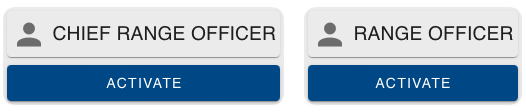
Click the “ACTIVATE” under the account name.
-
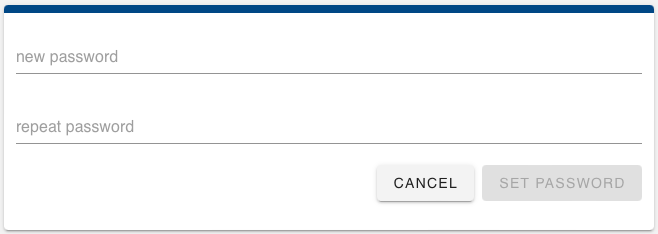
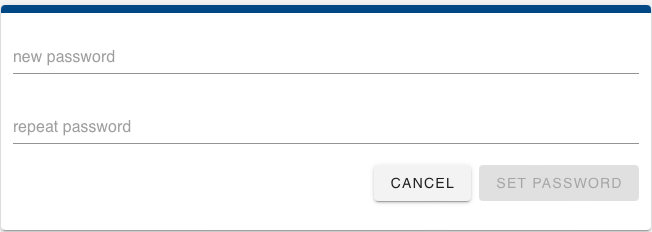
Enter a new password, confirm it and select “SET PASSWORD”
Admin
Only available when logged in as Admin.
Changing a password
Settings → User-specific settings
-
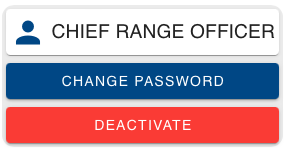
Click the “CHANGE PASSWORD” under the account name.
-
Enter a new password, confirm it and select “SET PASSWORD”.
Admin
You must be logged in as Admin to change passwords.
Deactivating an account
Settings → User-specific settings
- Click the “DEACTIVATE” under the account name.
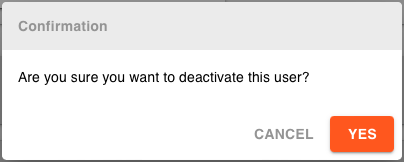
- Confirm by selecting “YES”.
Admin
You must be logged in as Admin to deactivate accounts.
Finding the eHub ID while still logged in
- Open the home screen and select eStatus.
- Expand the eHub group.
- Copy the eHub ID and send it to W5 support to request a reset file.
- Once you have received the file, log out and follow the Resetting a password procedure below.

Resetting a password
If you have forgotten the password and cannot log in
- Select the user icon at the top right.

- Select Adminaccount.
- Select Reset password.
- Contact W5 support and provide the eHubID. You will receive a password reset file.
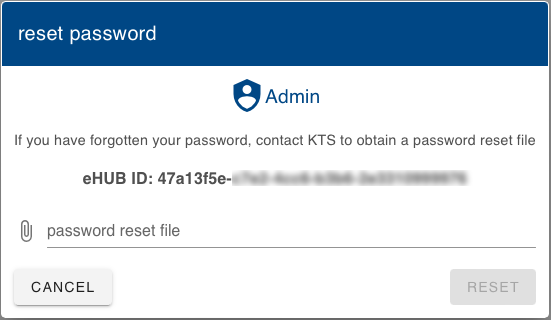
- Once you have received the reset file, select the file selection field and choose the file.
- Select Reset.
- Then follow the steps under Setting up the Admin account to set up the account again.
User levels
Overview
Admin
Admin is the highest user level and has full control over the eHubsystem. Admin is responsible for configuring and managing the entire installation and has access to:
- Spectator display
- Device status
- Skuddlogg
- Print scorecards
- Range Officer view
- Manage competitions
- Create and edit competitions
- Create and edit control groups
- Install updates
- Configure the system
- Manage user accounts
- Manage shooting programs
- Manage target scoring definitions
Admin can change settings, update the system, create and manage competitions, and maintain user accounts.
Chief Range Officer (CRO)
Chief Range Officer (CRO) is the user level for the person responsible for running the competition. It provides the features needed to create, manage and run competitions.
The Chief Range Officer has access to:
- Spectator display
- Device status
- Skuddlogg
- Print scorecards
- Range Officer view
- Manage competitions
- Create and edit competitions
The Chief Range Officer can monitor shooting, print scorecards, and create, manage and run competitions on eHub.
Range Officer (RO)
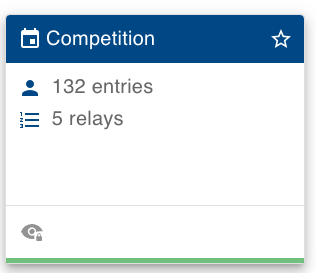
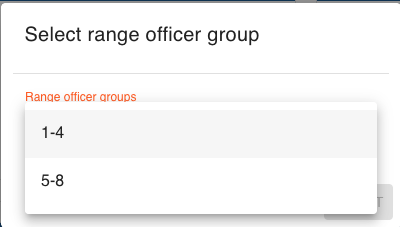
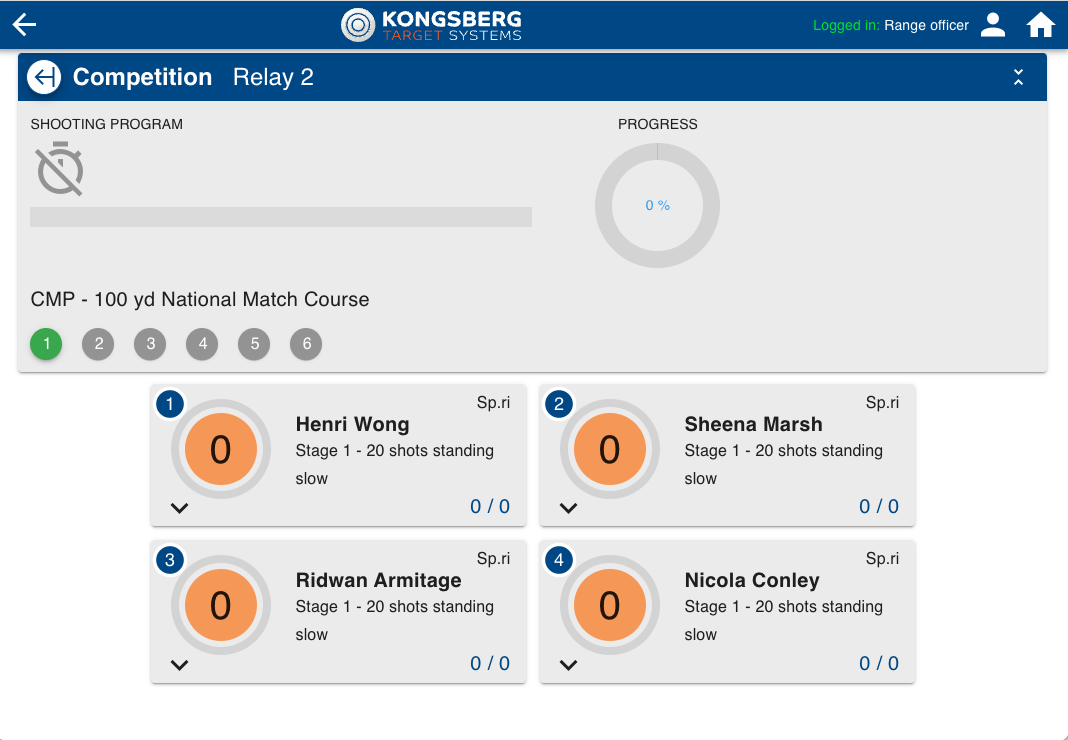
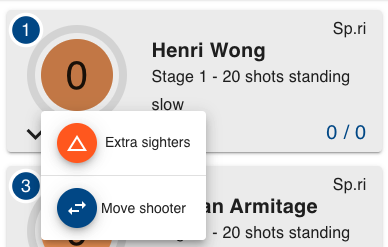
A Range Officer (RO) supervises a group of targets on the firing line and helps ensure safe and orderly competition operation. The role has a dedicated view in eControl, called Range Officer view. Here the officer can perform certain actions on the targets, such as advancing a shooter from sighters to match shots, granting extra sighters and moving a shooter.
The Range Officer has access to:
- Spectator display
- Device status
- Skuddlogg
- Print scorecards
- Range Officer view
Range Officer view
Without logging in
Without logging in, you can access the local spectator display.