
eControl
eControl is an application hosted on the eHub and is used for running training sessions or competitions on a shooting range.
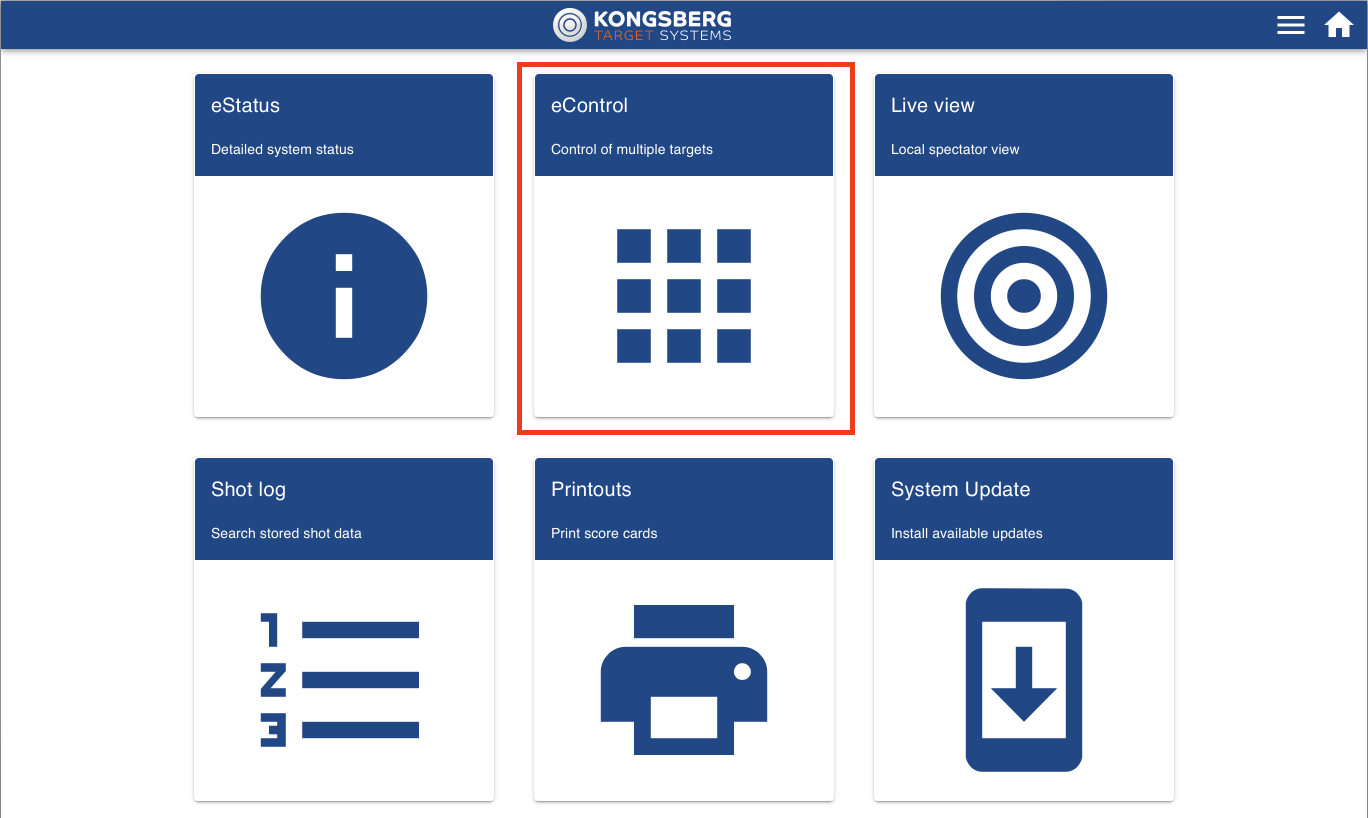
eControl is available from the eHub Home Screen.
YouTube playlist
Please see our playlist of eControl related videos.
Create a competition
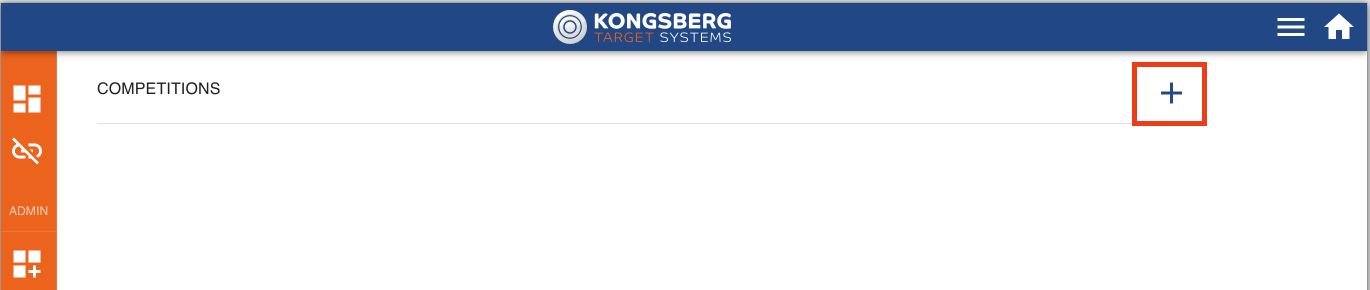
- To create a competition, click the "plus" icon.
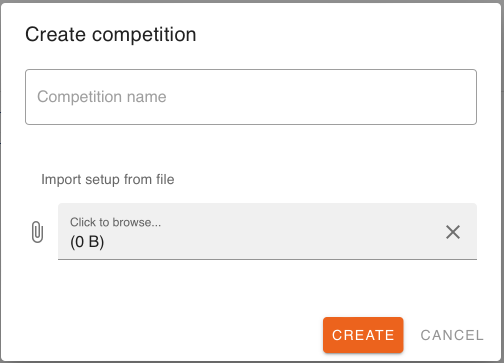
- Enter name of the competition.
-
Yes, show me!
- Add Button
You can create a competition in eScore by importing a namelist (a list of participants) from a spreadsheet. Each import creates a new competition. It does not add participants to an existing competition.
Supported files
The namelist must be an Excel workbook (.xlsx). Only the first worksheet is read. The older .xls format is not supported.
Two layouts can be used:
- Format A, fixed columns. There is no header row, and every column has a fixed position. This is the original format.
- Format B, named columns. The first row names the columns. Columns can come in any order, and you can leave out the ones you don't need.
eScore picks the layout for you (see "How eScore detects the correct format" below).
Format A: Fixed columns (no header row)
Participant data starts in row 1. Do not add a header row. If you add one anyway, eScore skips it and reports it as a "Bad entry on line 0" warning.
| Column | Field | Type | Required | Description |
|---|---|---|---|---|
| A | Relay Group | Integer | Yes | The relay group number. All rows with the same number go into the same relay group, named "Relay Group <number>". Use 1 if you only need one group. |
| B | Relay Number | Integer | Yes | The relay the shooter is in. Rows without a valid number are skipped and reported. |
| C | Firing Point | Integer | Yes | The target (firing point) number in the relay. Rows without a valid number are skipped and reported |
| D | Name | Text | No* | The shooter's full name in one cell, for example Ola Nordmann. The whole value is saved as the first name, and eScore does not split it into first name and last name. Use Format B if you need separate fields |
| E | Club | Text | No | The shooter's club |
| F | Class | Text | No | The shooter's class, for example 1, 5, J, V55 or Sporter. It is saved exactly as written |
| G | Sum In | Number | No | Ingoing score carried into this competition, for example from an earlier stage. You can use decimals, for example 523.4. Use at most one decimal. Leave it empty or use 0 if there is no score to carry |
| H | Shooter ID | Text | No* | The shooter's ID in the organisation, for example a membership number. It can contain letters |
| I** | Team Name | Text | No | Team name, used for team shooting. See Team shooting. |
* A row needs either a Name or a Shooter Id to create a participant. If both are empty, eScore still creates the target in that relay but leaves it empty. You can use this to keep a lane free.
** Team name is only relevant when doing a CMP Style team shooting event.
Example file
The Excel file below is an example of a file with the "Fixed columns" format.
Format B: Named columns (header row)
The first row holds the column names, and participant data starts in row 2. Columns can come in any order. You can leave out columns you don't need, and eScore ignores columns it doesn't recognise.
Column names
Column names are not case-sensitive (FirstName, firstname and FIRSTNAME all work), and spaces before or after the name are ignored. Otherwise the name must be spelled exactly as shown. For example, First name with a space in the middle and Shooter Id are not recognised.
| Column Name | Field | Type | Description |
|---|---|---|---|
| relay | Relay Number | Integer | The relay the shooter is in |
| target | Firing Point Number | Integer | The firing point (target) number in the relay |
| firstname | First Name | Text | The shooter's first name |
| lastname | Last Name | Text | The shooter's last name |
| club | Club | Text | The shooter's club |
| class | Class | Text | The shooter's class. It is saved exactly as written |
| sumin | Sum In | Number | Ingoing score, as in Format A. If it is empty or not a number, 0 is used |
| shooterid | Shooter Id | Text | The shooter's ID in the organisation |
| team | Team | Text | Team name for team shooting. It is only used when relay and target are both present |
Format B has no Relay Group column, so all participants go into a single relay group, "Relay Group 1"
With or without relay and target
relay and target both present: participants are placed on targets. This works the same way as Format A: relays and targets are created, and team shooting and empty targets are supported. Rows where relay or target is not a valid whole number are skipped and reported as "Skipping invalid row".
relay or target missing: participants only. Participants are imported without a relay or target, in the same order as in the file. You then assign them to relays and targets in eScore. In this mode:
- The team column is ignored
- If only one of relay or target is present, it is ignored
- Rows with neither firstname nor shooterid are skipped
Example files
The example files below shows three different ways to use the "Named columns" format when importing squadding from a file.
Format B - Without relay and target.xlsx
How eScore detects the correct format
When importing squadding lists from a file, eScore will automatically detect the format based on the contents of the file. eScore looks at the first row of the first worksheet:
1. If every cell in the first row is text and the row contains either
- both relay and target, or
- both firstname and lastname
the file is read as Format B - Named columns
2. Otherwise, the file is read as Format A - Fixed columns
Team shooting (multiple shooters on one target)
NOTE! This functionality is designed specifically for CMP style team shooting events and requires the use of shooting programs designed for team shooting in order to work properly.
In Format A, and in Format B with relay and target, you can put more than one row on the same Relay Group, Relay and Target. These shooters then form a team on that target:
- eScore creates a team for each target that has more than one shooter, and turns on team shooting for the relay group.
- Members per team is set to the size of the largest team in the file.
- Team members shoot in the same order as their rows appear in the file.
- All rows on the same target must have the same team name, or all leave it empty. If the names differ, the whole import is cancelled with "Entries on the same target and relay have different team names".
- A team name on a target with only one shooter is ignored.
Example file
Please select "click to browse" to import the name list you have created.
- Click create
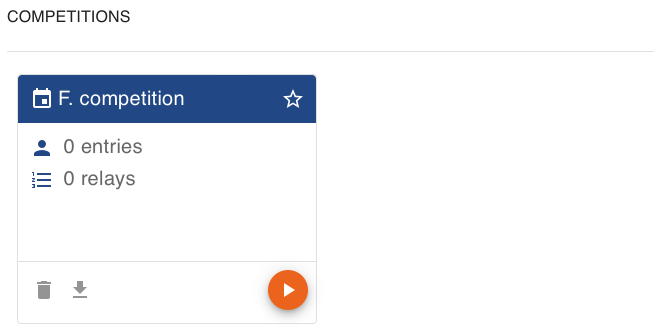
- You will now see the competition you just created in the competition overview
Running a competition
Start a competition
To start a competition you need locate the competition you want to start, and click the orange "play" icon. If the competition is already running, you need to click the "eye" icon to enter and see the running competition.
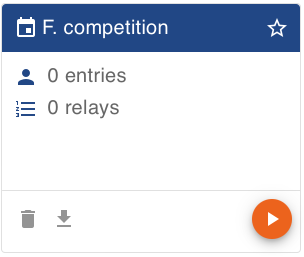 Click "play" icon to start a comp.
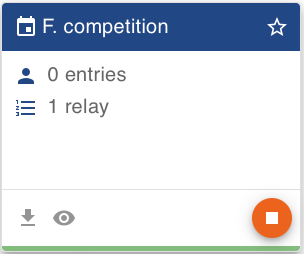 Click "eye" icon to continue a running comp.
When starting a competition you need to select which lanes to operate and which shooting program. Click start to enter and run the competition.
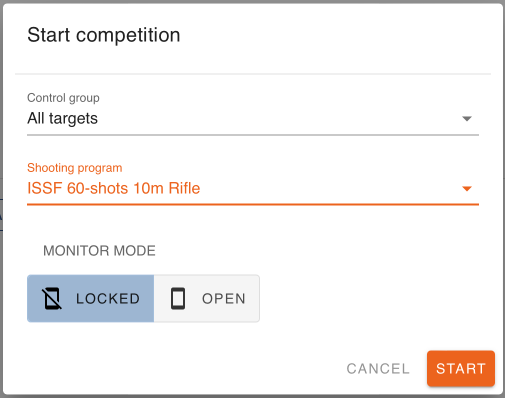
Control group
Control group is which targets you want to operate. "All targets" will always be available. By choosing "all targets" you will operate all available targets. This is the default choice for most users. If you want to operate only a selection of targets, you need to select a control group. It is possible to create and manage control groups from the "control group" menu.
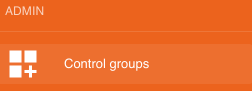
Shooting program
A shooting program is a recipe on how the competition should be run, like number of series/stages, target scoring definition, number of shots etc. Please select the shooting program that you are going to use.
Monitor mode
The monitor mode is to limit the possible actions the shooters monitors are allowed to during a competition. If you don´t want the shooters to get lost in menus, navigate in the shooting program or reboot the monitor during a competition you should select "Locked" or Auto mode.
Open
"Open" mode has no limitation and the shooter monitor can operate everything from navigation to all the different menus.
Locked
The Locked (auto) mode locks down most of the menus an actions.
Auto allows the shooter to navigate from sighters to match in a block series, operate the target lift and select gauges where available.
Run a competition
User interface overview

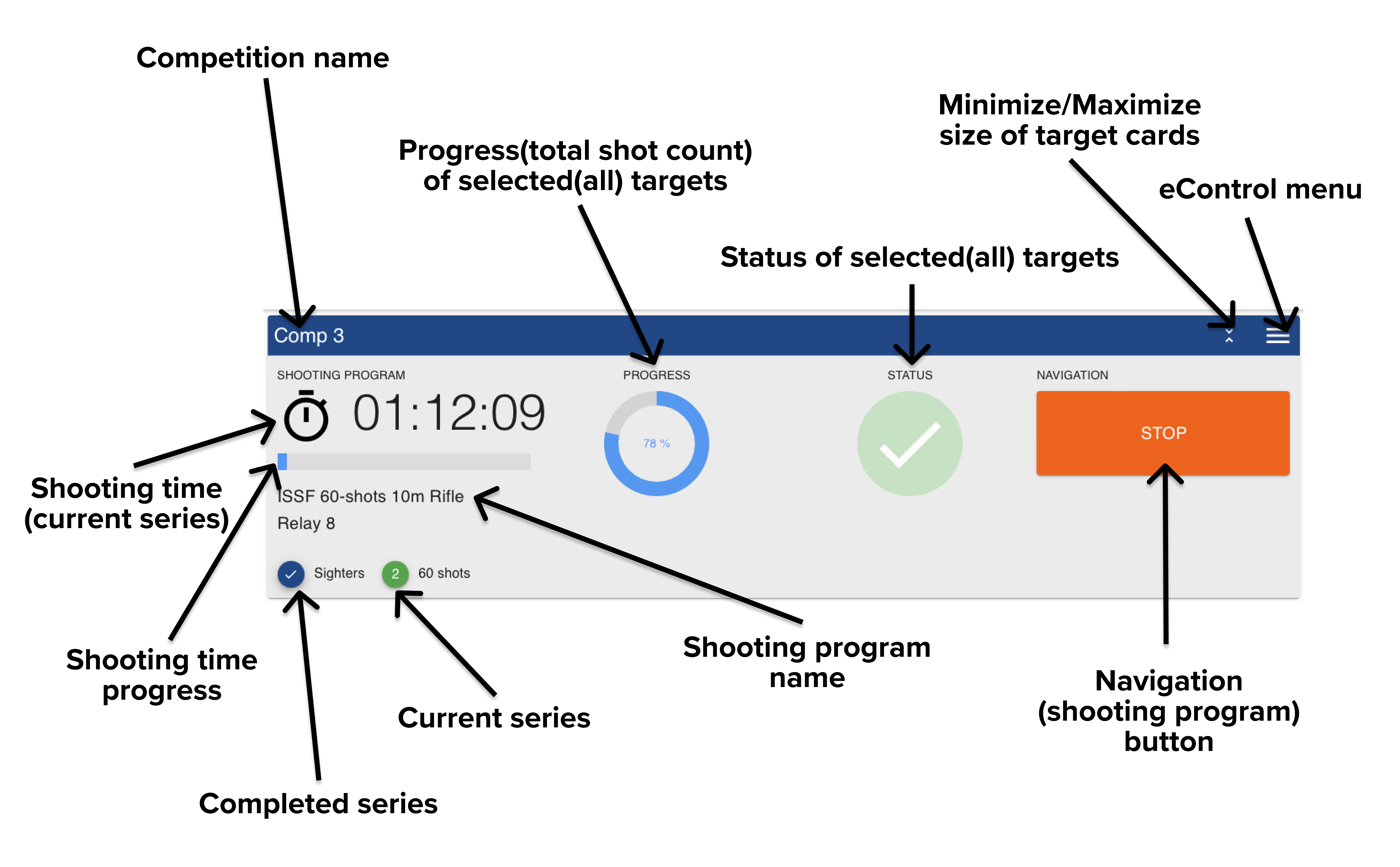
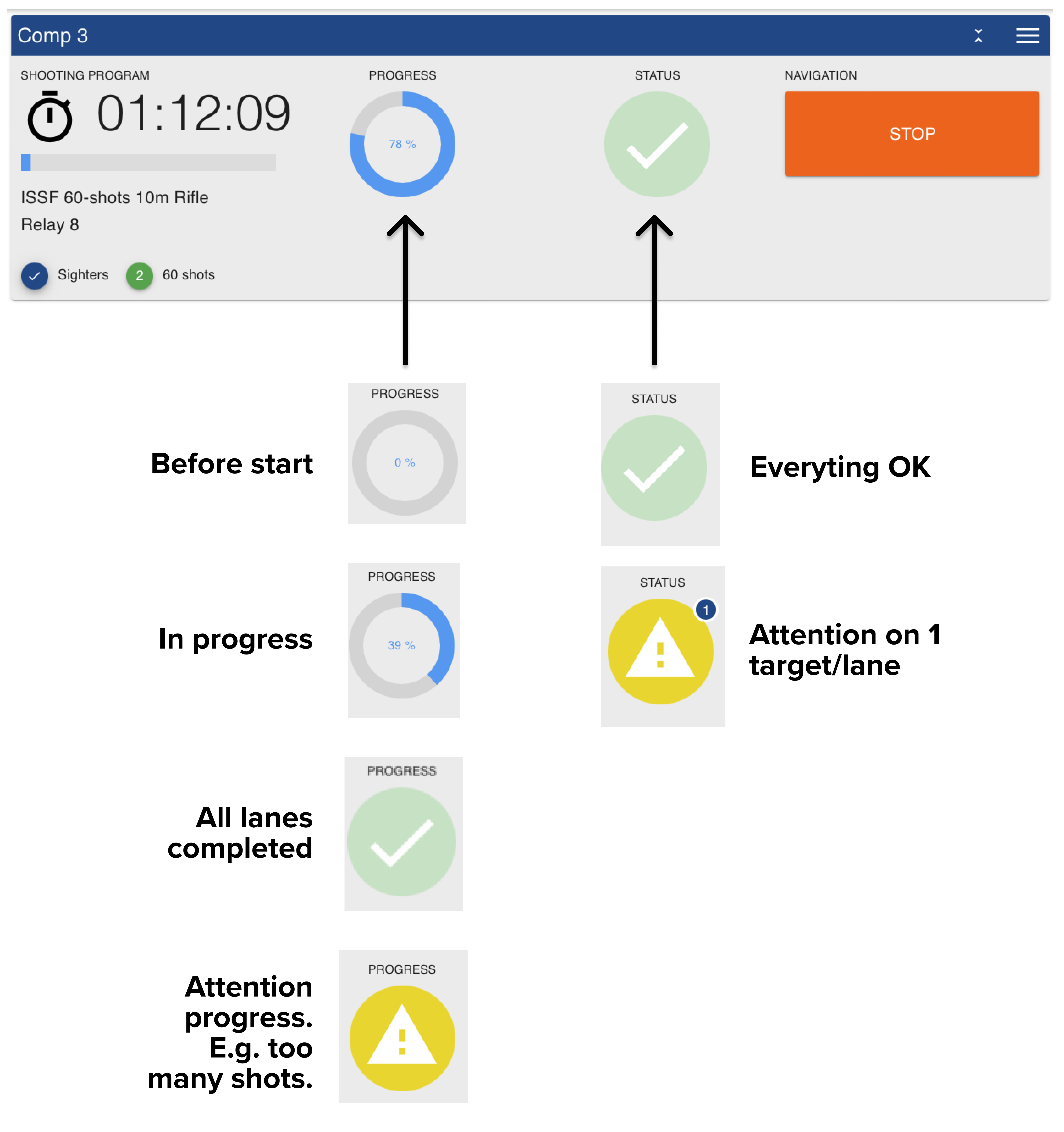
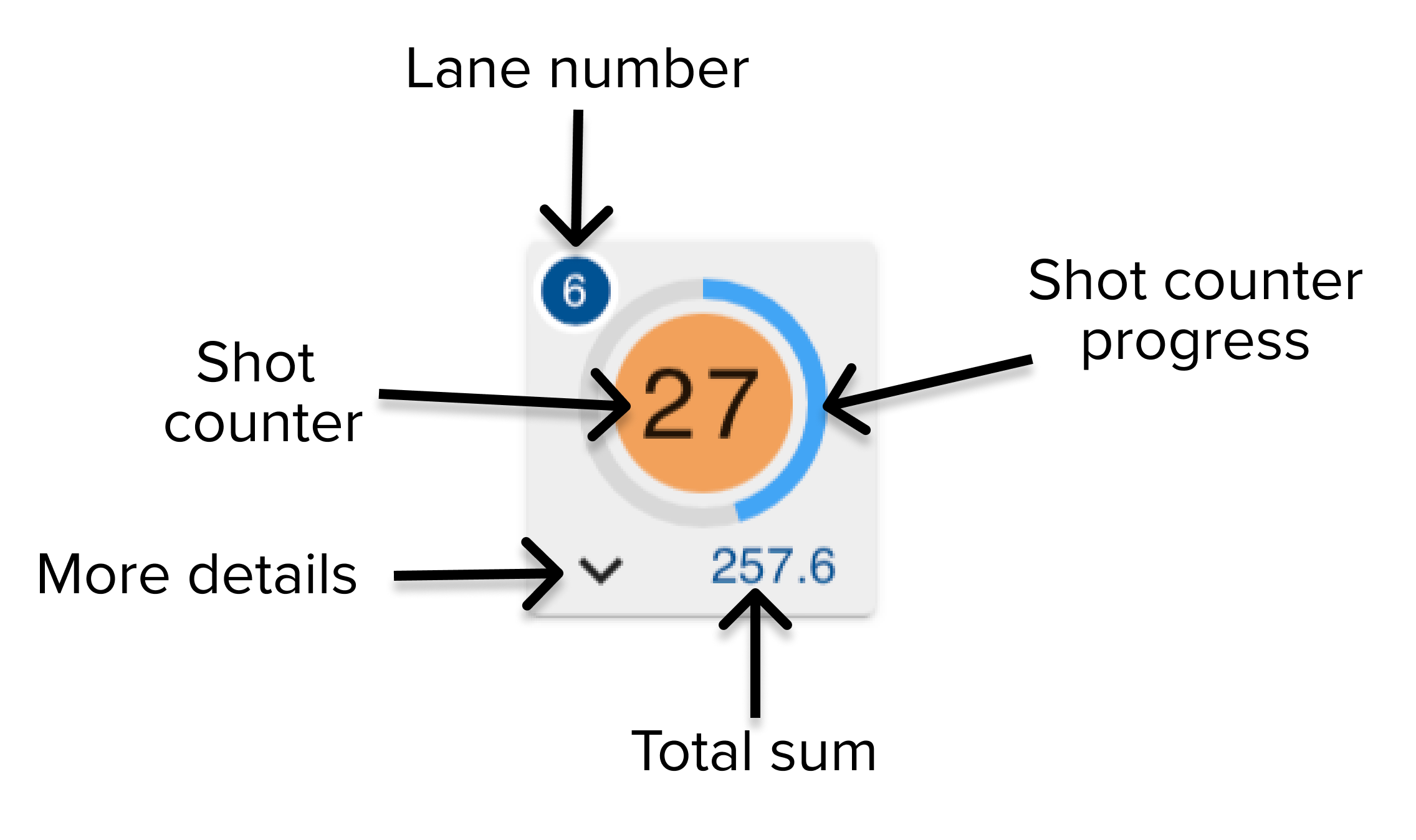
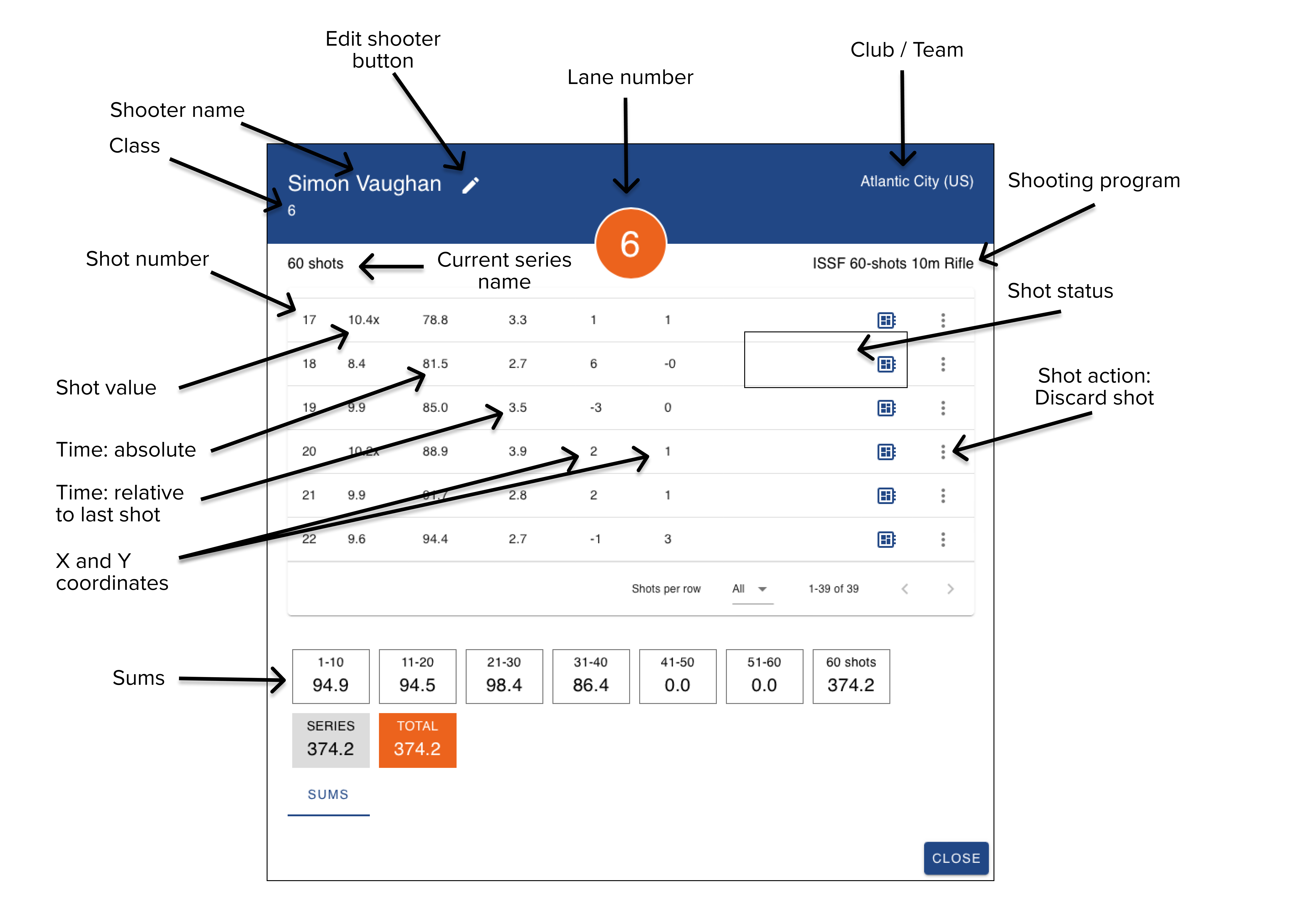
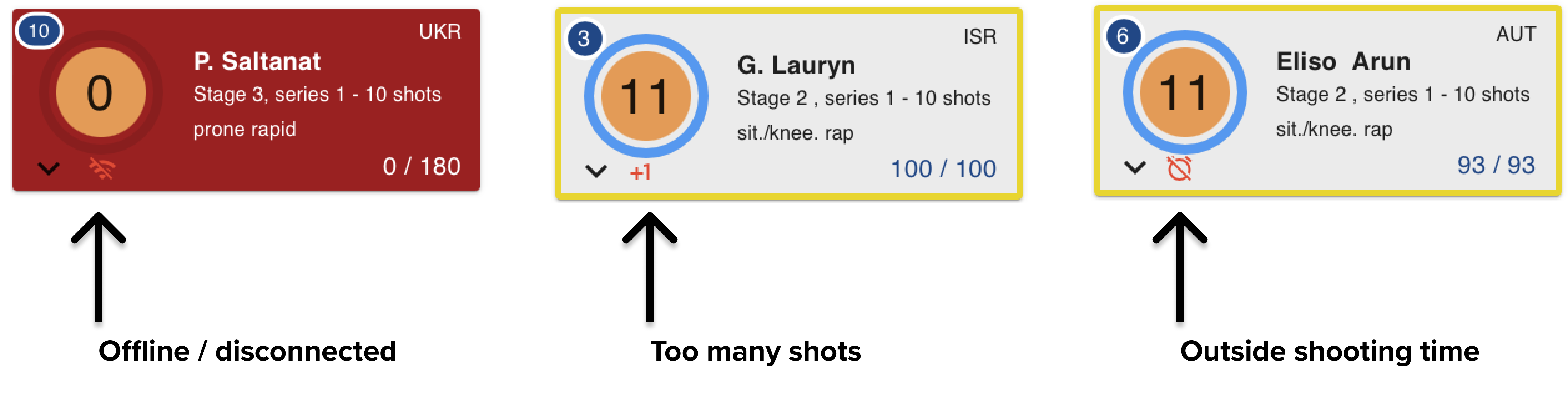
The eControl user interface is made from ground up to give the operator the best possible overview of a running competition. You will be presented with a large component (common card) that operates, gives you an overall status and progress of the selected targets/lanes in the competition.
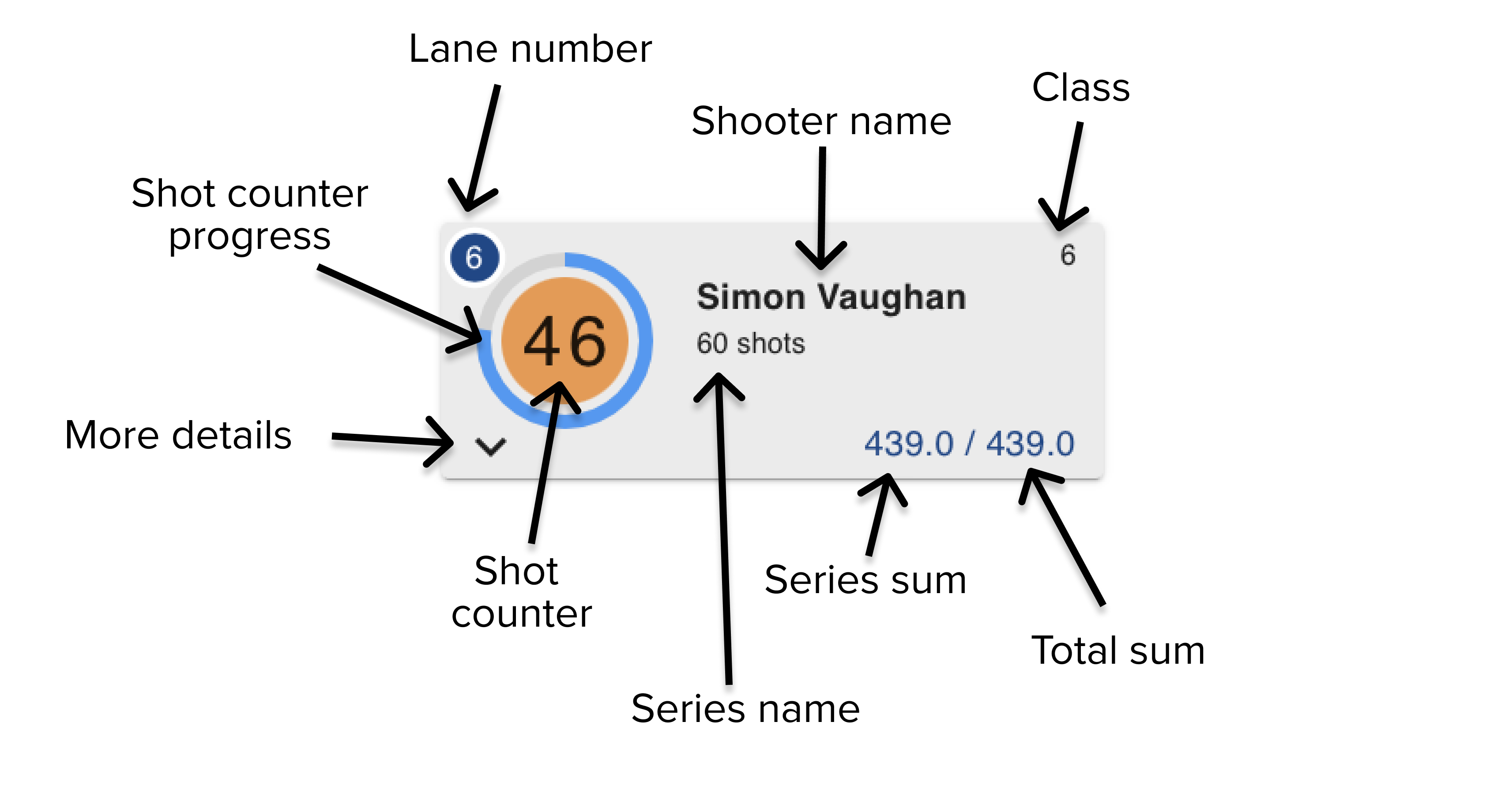
Below this component you will see all available targets in the competition, with information, progress and status.
Please expand each accordion to see more details of all the available components, navigation and information.
Navigation
eControl has a large navigation button that easily and intuitively guides you through the shooting program, step-by-step. You don't need to worry about remembering different settings and buttons.
A typical scenario, ISSF 60 Shots 10m Rifle: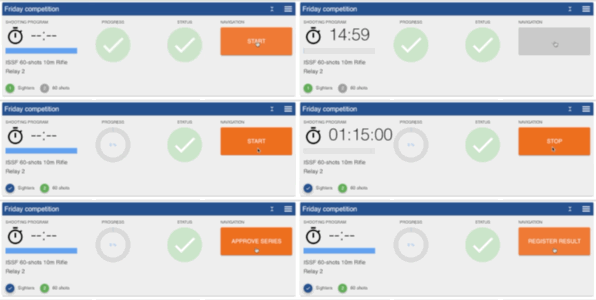
Export results
It is possible to export the results, and work with the ranking in other software like e.g. Excel.
 Click the "Download" icon to download results
Export options
When exporting results from a competition, there are available some options in the export dialog
Use decimals
| Setting | Each shot counts as | Example |
|---|---|---|
| Off | Whole points | A shot of 10.7 counts as 10 |
| On | Points with one decimal | A shot of 10.7 counts as 10.7 |
This setting only changes the scores. Inner hits are counted regardless of these settings.
Split into sub-series
Normally, the file has one score for each series in the shooting program. Turn on Split into sub-series to divide each series into smaller groups of shots, and use the slider to choose how many shots go in each group (1–20).
This is useful when you need sums for every 10 shots, for example. If a series can't be divided evenly, the last group gets the shots that are left over.
Example: with 10 shots per sub-series, a 25-shot series gives three sums: shots 1–10, shots 11–20 and shots 21–25.
The sub-series are numbered continuously through the file. If each series gives three sub-series, Sum 1–3 come from series 1, Sum 4–6 from series 2, and so on. The file does not mark where one series ends and the next begins.
File format
Rows
- The first row holds the column headings.
- Each following row holds one shooter's result in one shooting program. A shooter who shot two programs in the same competition gets two rows.
- Only shooters who have results are included. Results without a shooter name are left out.
- Rows are sorted by Total sum, highest first. Shooters with the same total are not separated by inner hits.
Columns
| Column | Description |
|---|---|
| Shooter name | The shooter's first and last name |
| Shooter ID | The shooter's ID in the organisation, for example a membership number. Empty if the shooter has no ID |
| Club | The shooter's club |
| Class | The shooter's class |
| EventID | The ID of the shooting program the result belongs to, for example DFS_100M_35_SHOT. Use it to tell rows apart when a competition uses more than one program |
| Event name | Not in use. This column is currently always empty |
| Sum 1 | The score for series 1, or for sub-series 1 if you split the series |
| Inner hit 1 | The number of inner hits in series 1 (or sub-series 1) |
| Sum 2, Inner hit 2, ... | The same two columns are repeated for every series |
| Total sum | The total score: all Sum columns added together |
| Total inner hit | The total number of inner hits |
Notes
Below are some important notes related to the export format
- Shots that weren't fired count as 0. If a shooter fired fewer shots than the series has, the missing shots add nothing to the sum.
- Shots with an error status are not counted.
- Inner hits are hits in the inner ten (often marked with an X), as defined by the target used.
Example files
DFS 25-shots export example file